Phone settings and privacy
H5 vs APK: check permissions on your phone
H5 browser access and an Android APK use different permission controls. A website can ask the browser for access to features such as the camera; an installed app has its own Android permission settings. Review the relevant controls before sharing data or trying to fix a loading problem.
Updated 4 October 2026
About this guide
These are general Android and Chrome instructions, checked against Google's help pages. Menu names vary by phone and software version. They do not verify a particular game, account provider or download.
What changes between H5 and APK permissions?
H5 is a label used for access through a browser. An APK is a package used to install an Android app. For a browser page, inspect the website's permissions as well as the browser's Android permissions. For an installed app, inspect that app's permissions in Android settings.
| Control | Browser page | Installed Android app |
|---|---|---|
| Permission record | Website permissions in the browser; browser permissions in Android | Permissions for that app in Android settings |
| Local data | Cached files, cookies and other site data | App files and locally stored app data |
| Source to record | Full page address and redirects | Download address and the app actually installed |
| After an unexpected request | Decline it and review that site's permissions | Decline it and review the app's permissions and source |
A familiar lobby name does not settle any of those checks. Whether a page is labelled 918Kaya, Mega888 or something else, record the full destination you are using. This guide does not provide an account or download route.
How do you review a website's permissions in Chrome?
- Open Chrome on Android and open its Settings menu.
- Find Site settings and select the permission you want to review, such as Notifications or Camera.
- Find the website and change the permission if it is unnecessary.
Chrome also provides controls for an individual site's permissions. Follow Google's current Chrome site-permission instructions if your menu differs. Turning off notifications changes that permission; it does not close an account or cancel a transaction.
Before accepting a request, identify the action that needs it. A camera prompt during a task you chose needs a different investigation from an unexpected prompt immediately after a redirect. If the purpose is unclear, decline it and ask the provider to explain the task.
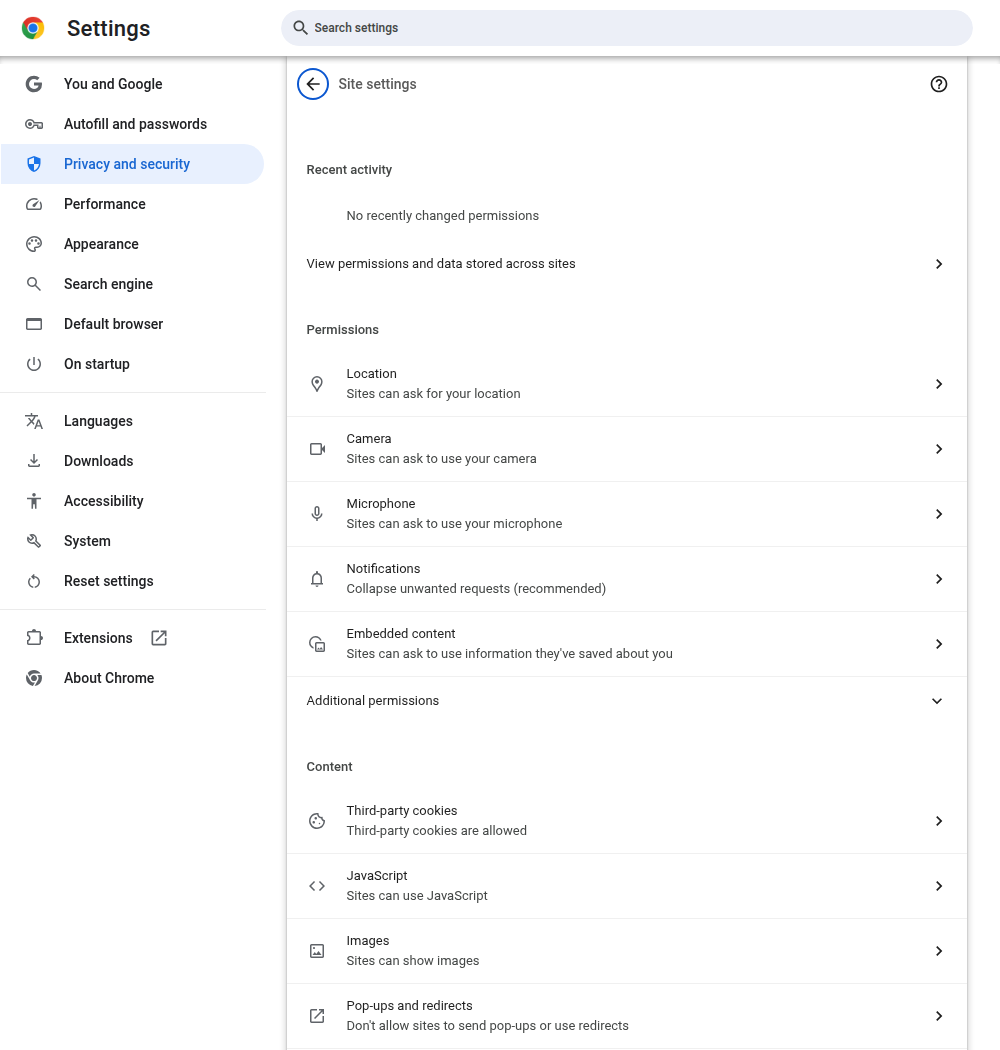
A browser settings screen we checked
On 4 October 2026, an automated PPCPNG editorial check opened Site settings in desktop Chrome 150 on Linux. The screen listed separate controls for location, camera, microphone and notifications. No permission was changed.
How do you check an installed app's permissions?
- Open Android Settings, then Apps.
- Select the app. Use the full app list if it is not shown.
- Open Permissions and review what has been allowed.
- Select an unnecessary permission and change it to Don't allow.
Options depend on the phone, Android version and permission. Some permissions can be limited to the time you use an app. Google's Android permission guide explains those controls. A denied permission may prevent a feature from working; that does not establish that every requested permission is necessary.
If an app asks you to enable a powerful system setting you do not understand, stop and record the exact request. Do not give someone remote control of your phone to make it disappear. Keep personal notifications and account details out of any screenshot you send.
What should you do with a Play Protect warning?
Keep Play Protect enabled. Google says it checks for harmful app behaviour and can warn, disable or remove an app. You can review its settings in the Play Store through your profile and Play Protect. Follow the warning instead of disabling protection to force an installation. Read Google's Play Protect guidance.
No warning is not a guarantee about an operator or a future payment. A file-source check and an account-provider check answer different questions. If you installed an unexpected package, record its name and source and follow the device's removal guidance. Deleting a downloaded installation file alone does not uninstall an installed app.
Will clearing the cache sign you out?
Cached files and sign-in data are different categories. Removing cached images and files makes the browser fetch those resources again. Removing cookies and site data can sign you out. Check the selected categories before confirming, especially on a shared phone.
Chrome's browsing-data instructions explain what each category removes. Avoid selecting saved passwords or other account data when your aim is only to refresh cached files. Clearing browser data does not cancel an account, reverse a payment or change the terms you accepted.
Before changing anything, save the error text and the page address. Reopen the known address once and check whether the same error occurs. If you then clear cached files, record whether the result changed. Repeatedly clearing every category can remove useful evidence while leaving a provider-side problem unresolved.
How can you investigate repeated mobile-data use?
Note the browser or app, the action you took and the time. Record any large download before repeating it. An app package, an update and resources loaded during a session are separate uses of data. A comparison needs the same device and a defined task to be meaningful.
This article contains no measured PNG speed or data comparison. For a problem such as repeated reloads, use the low-data troubleshooting guide and describe what changed after one controlled retry. Avoid treating a slow page as a reason to download several different files.
Questions about permissions and access
Does opening H5 require an APK?
Browser access itself does not require installing an Android package. If a page asks for one, you are being offered an additional installation step. Check why it is needed and where it comes from before continuing.
Can an APK install on an iPhone?
An Android APK is not an iPhone app. Use a supported browser or iOS route supplied by the account provider. This guide does not establish that a particular provider offers either option.
Does removing an app end the account?
Uninstalling removes the app from the phone. Account closure and any unresolved funds need to be handled through the provider's stated process. Save the provider's contact details before removing an app you have used for an account.